
Your internet speed for camming decides whether anyone sticks around long enough to tip. Nobody tips a frozen screen. You can have perfect lighting, a great room, and an audience that actually wants to be there, and none of it survives thirty seconds of buffering. Viewers leave, the room ranking drops, and you spend the rest of the session trying to claw back the traffic you lost. Nine times out of ten the culprit is your internet speed for camming, not your camera.
The frustrating part is that most models never find out the real cause. They blame the webcam, buy a new one, and the stuttering continues. In the overwhelming majority of cases the problem is the internet speed for camming that they actually have available for uploading, which is almost never the number printed on the internet bill.
This guide covers exactly how much speed you need for each stream quality, how to test your connection so the result means something, what bitrate to set once you know your number, and the cheap fixes that solve most lag problems. No networking degree required.
How much internet speed for camming do you actually need?
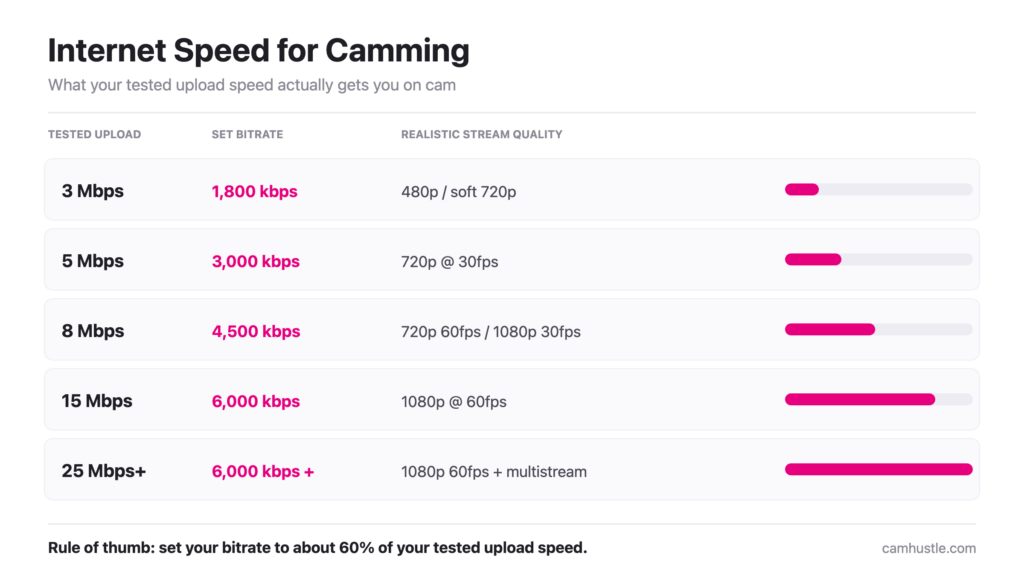
You need a minimum of 5 Mbps sustained upload speed to stream 720p reliably, and 10 to 15 Mbps upload to stream 1080p without visible compression. Download speed barely matters for broadcasting.
Here is what each tier realistically gets you:
- Under 3 Mbps upload: 480p only. Your stream will look soft and viewers on desktop will notice immediately. Fine as a temporary situation, not something to build a career on.
- 3–5 Mbps upload: Solid 720p at 30fps. This is the honest floor for a paid room.
- 5–10 Mbps upload: Comfortable 720p at 60fps, or 1080p at 30fps if the connection is stable.
- 10–20 Mbps upload: True 1080p at 60fps with room to spare. This is where you want to be if you take camming seriously.
- 20 Mbps and up: Enough headroom to run multiple platforms at once, which matters if you multistream on multiple cam sites.
The word doing the heavy lifting there is sustained. A connection that peaks at 12 Mbps and drops to 3 Mbps every few minutes is worse for streaming than a boring, flat 6 Mbps line. Cam sites handle a lower steady bitrate gracefully. They handle sudden drops by dumping frames, which is what viewers see as freezing.
Why upload speed matters more than download speed
When you broadcast, video leaves your computer and travels to the platform’s servers. That direction is upload. Everything your internet provider markets to you, the “500 Mbps!” sticker on the plan, describes download.
Most residential plans are wildly asymmetric. A cable plan advertising 300 Mbps down often ships with 10 Mbps up, sometimes less. DSL is worse. That is why a household that streams Netflix in 4K without a hiccup can still produce a cam stream that looks like a slideshow.
Connection types, ranked for broadcasting:
- Fiber: Usually symmetric, so 300 Mbps down means 300 Mbps up. If fiber is available where you live and you cam full time, it is the single highest-impact upgrade you can make.
- Cable: Workable. Upload typically lands between 5 and 35 Mbps depending on the tier. Check the fine print before you sign anything.
- 5G home internet: Fast on paper, inconsistent in practice. Upload swings with tower congestion, which is exactly the pattern that breaks streams.
- DSL: Rarely enough. Upload often caps around 1 Mbps.
- Phone hotspot: Emergency only. Expect throttling and dropped sessions.
If you are shopping for a new plan, call the provider and ask one specific question: what is the guaranteed upload speed, not the maximum. Sales reps will quote download all day if you let them.
How do you test your connection properly before a show?
The only way to know your real internet speed for camming is to measure it. Run a speed test at Speedtest.net at the same time of day you normally broadcast, on the same device you stream from, with everything else in the house running as usual. Write down the upload number, not the download number.
Testing at 10am on an empty network tells you nothing about your 11pm show. Neighborhoods share bandwidth on cable, and evening congestion is real. Test three times across a week during your actual streaming hours and use the lowest result as your working number.
Two other numbers worth glancing at while you are there:
- Ping (latency): Under 50ms is great, under 100ms is fine. High ping shows up as a delay between what you do and when tippers react to it, which makes interactive shows feel awkward.
- Jitter: Under 10ms is what you want. High jitter means your connection speed is bouncing around, and that is the specific gremlin behind stutter that appears out of nowhere on an otherwise “fast” connection.
One more test worth doing: stream to a private or test room for ten minutes and watch the dropped-frames counter in your broadcasting software. On OBS for Chaturbate, it sits in the status bar at the bottom. Anything above 1% dropped frames means your bitrate is too high for the connection you actually have.
What bitrate should you set for your connection?
Set your video bitrate to roughly 60% of your tested upload speed. If you test at 10 Mbps upload, set the bitrate to about 6,000 kbps. That 40% cushion absorbs the normal dips without dropping frames, and it is the single most important setting to get right once you know your internet speed for camming.
Quick conversion, because the units are annoying: 1 Mbps equals 1,000 kbps. Speed tests report Mbps, broadcasting software wants kbps.
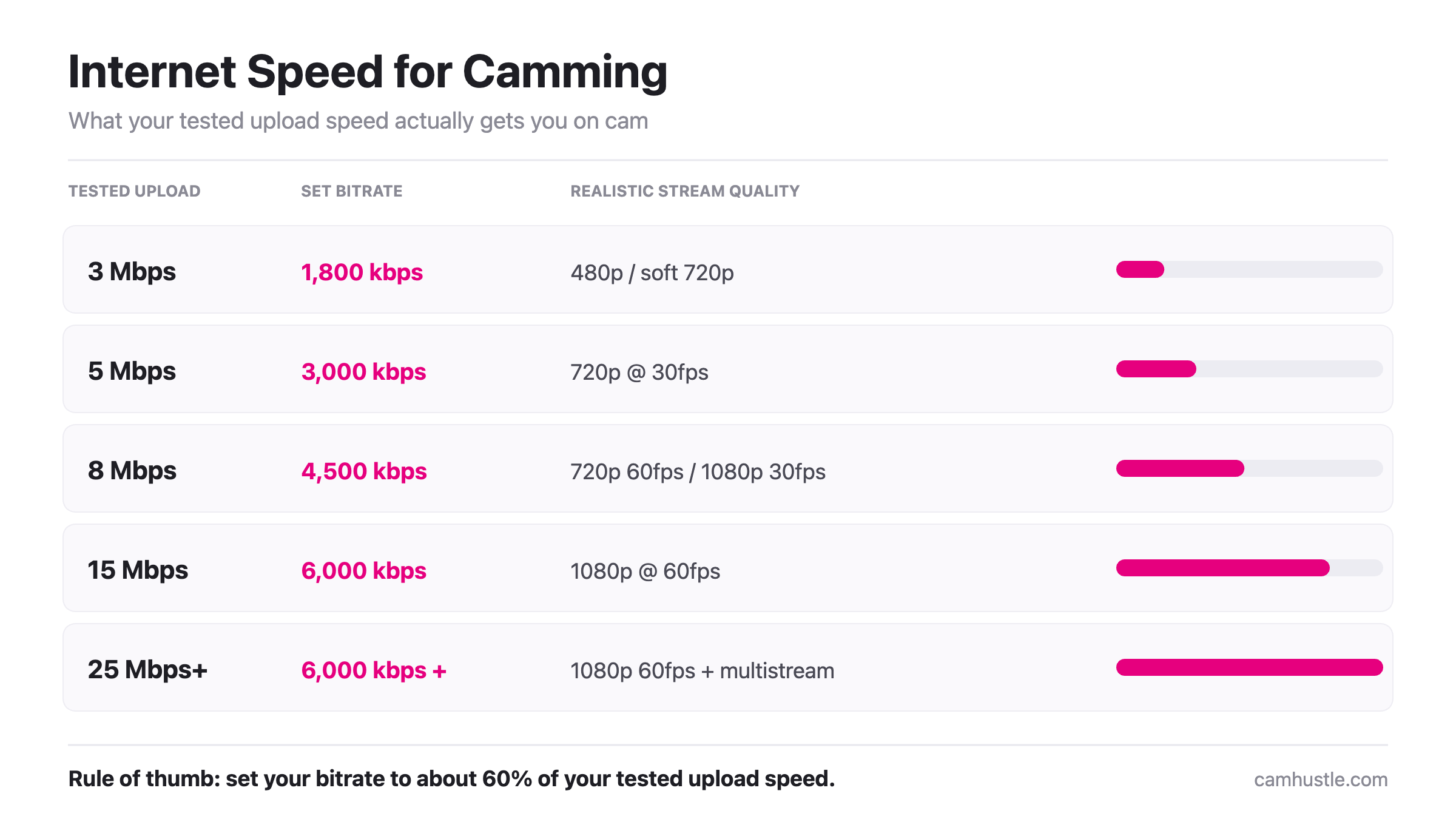
| Tested upload | Set bitrate | Realistic quality |
|---|---|---|
| 3 Mbps | 1,800 kbps | 480p / soft 720p, 30fps |
| 5 Mbps | 3,000 kbps | 720p, 30fps |
| 8 Mbps | 4,500 kbps | 720p 60fps or 1080p 30fps |
| 15 Mbps | 6,000 kbps | 1080p, 60fps |
| 25 Mbps+ | 6,000 kbps + second stream | 1080p 60fps with multistream headroom |
Notice the bitrate stops climbing past 6,000 kbps. Most cam platforms cap what they will accept and re-encode anything above it anyway, so pushing 12,000 kbps just burns your headroom for no visual gain. Check your platform’s current broadcasting guidelines, since the caps shift occasionally. Chaturbate and Stripchat both publish their recommended settings in their model dashboards.
Also switch your encoder to a hardware option if you have one. NVENC on an Nvidia card or Quick Sync on Intel takes the encoding load off your CPU, which frees up processing power and, on weaker machines, eliminates stutter that looks like a network problem but isn’t.
How do you fix lag when your internet speed for camming looks fine?
Plug in an ethernet cable. That fixes it maybe seven times out of ten, and it costs less than lunch.
WiFi is shared, interference-prone, and drops packets in ways a speed test snapshot won’t reveal. A wired connection is stable in a way wireless simply is not. If your streaming machine is nowhere near the router, a powerline ethernet adapter runs the signal through your electrical wiring, and a USB-C to ethernet adapter handles laptops without a network port. A long flat Cat6 ethernet cable tucked along the baseboard is unglamorous and works perfectly.
If wired isn’t possible, work down this list in order:
- Move to the 5GHz band. It is faster and far less crowded than 2.4GHz. Most routers broadcast both, often with different network names.
- Kill background uploads. Cloud backup, Dropbox sync, and system updates all compete with your stream for the same narrow upload lane. Pause them before you go live.
- Get other devices off the network. Someone in the house on a video call is eating your upload directly.
- Enable QoS on your router and prioritise your streaming device, so it gets first claim on bandwidth.
- Upgrade the router if it is more than five years old. A WiFi 6 router handles crowded households much better than older hardware.
- Lower the bitrate before you lower the resolution. Viewers forgive slightly soft video. They do not forgive freezing.
And check the boring stuff. An overheating laptop throttles its own CPU, which drops frames while your connection sits there innocent. A USB webcam sharing a hub with a busy external drive can stutter for reasons that have nothing to do with the internet. If you are still chasing ghosts, the equipment side is covered in our guide to the best webcam for cam models.
Internet speed for camming: frequently asked questions
Is 10 Mbps upload enough for camming?
Yes. 10 Mbps of stable upload comfortably supports 1080p at 30fps with a bitrate around 6,000 kbps, and leaves headroom for normal fluctuation. It is a solid working number for a full-time cam model.
Can you cam on WiFi, or do you need ethernet?
You can cam on WiFi, but ethernet is meaningfully more reliable. WiFi drops packets during interference and congestion, which causes stutter even when speed tests look healthy. If you cam for income, run a cable.
Why does my stream lag when my internet is fast?
Almost always one of three things: your bitrate is set too high for your actual upload speed, you are on WiFi with packet loss, or your CPU is overloaded from software encoding. Check dropped frames in your broadcasting software to tell network problems apart from computer problems.
How much data does camming use per hour?
Roughly 1.1 GB per hour at 2,500 kbps, about 2 GB per hour at 4,500 kbps, and around 2.7 GB per hour at 6,000 kbps. A four-hour show at 1080p uses about 8 to 11 GB, which matters if your plan has a data cap.
Does upload speed affect my ranking on cam sites?
Indirectly, and significantly. Cam site algorithms reward rooms that hold viewers. A laggy stream causes people to leave within seconds, which hurts your average viewer time and pushes your room further down the listings.
Should I upgrade my internet or my webcam first?
Internet, if your upload is under 5 Mbps. A 4K webcam on a 3 Mbps connection gets compressed down to something worse than a 1080p webcam on a good line. Fix the pipe before you upgrade what goes through it.
Internet speed for camming: the bottom line
Getting your internet speed for camming right comes down to three habits. Test your upload speed during your real streaming hours, set your bitrate to about 60% of the lowest number you get, and plug in an ethernet cable. Those three steps solve most streaming problems that models spend money trying to fix with new gear. Once your connection is sorted, the rest of the room is worth the same attention, so take a look at our walkthrough on how to set up a cam room for beginners and get the whole setup working together.
This post contains affiliate links. If you purchase a product through these links, CamHustle may earn a small commission at no extra cost to you.